Install Guide
5 min read
Step-by-step instructions to install and configure BonaFide in your store.
Prerequisites
Before installing BonaFide, ensure you have:
- An active store on the Shopify platform
- Admin access to install apps
- Products with prices set up in your catalog
Step 1: Install and open BonaFide
Install BonaFide from the Shopify App Store, then open it from Shopify Admin so you can start the launch workflow.
Open BonaFide on Shopify App Store
- In Shopify Admin, open Apps and click BonaFide Omnibus.
- Go to Dashboard overview.
- Confirm your shop domain appears under the page title.
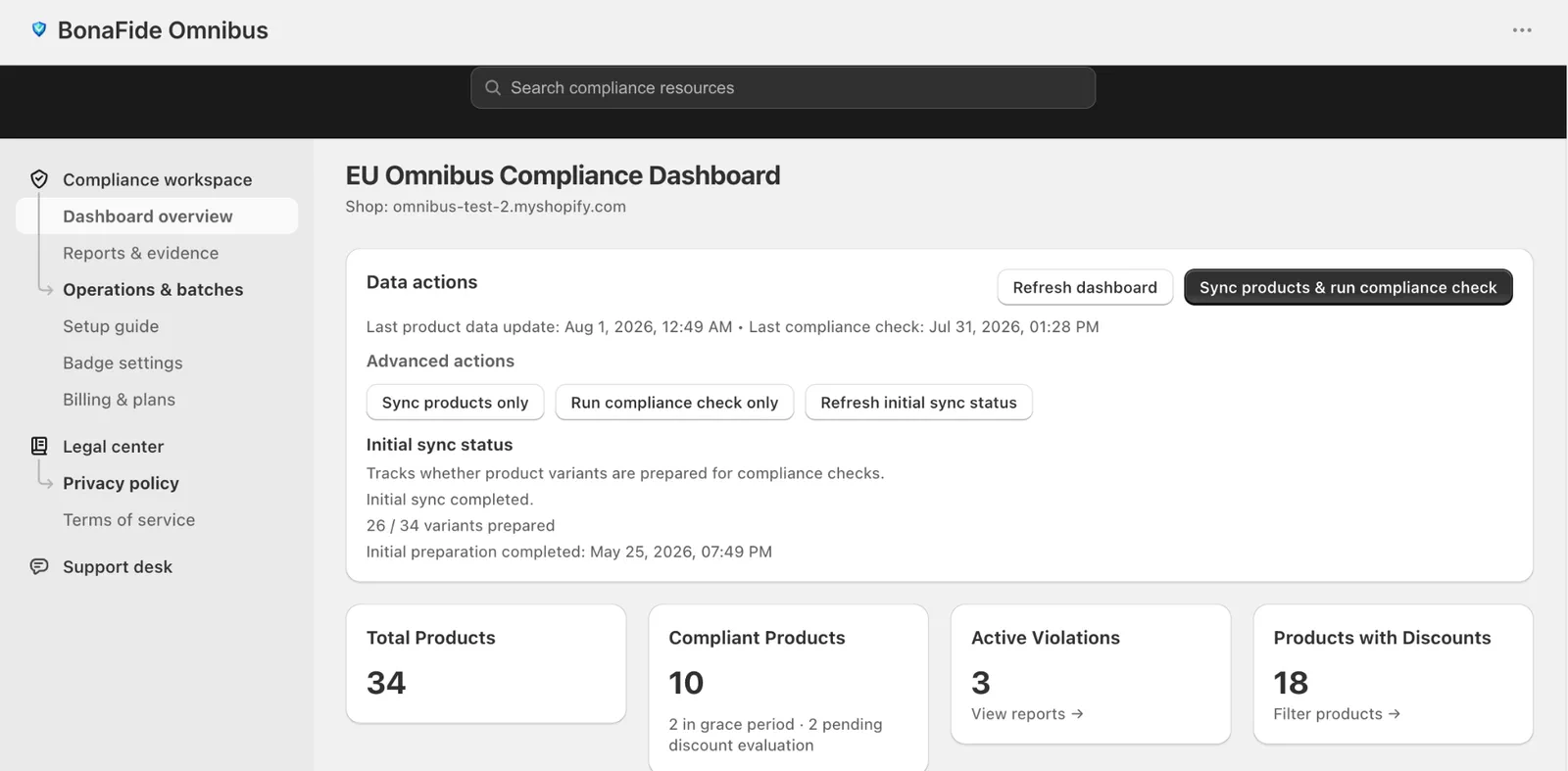
BonaFide does not edit your product prices or compare-at prices. Product-page badge rendering does not require shopper personal-data collection just to display the badge.
Step 2: Prepare product data
Use the current operations workflow to prepare the catalog data that compliance checks rely on.
- Open Operations & batches.
- Click Sync products.
- Watch Recent job runs while the job completes.
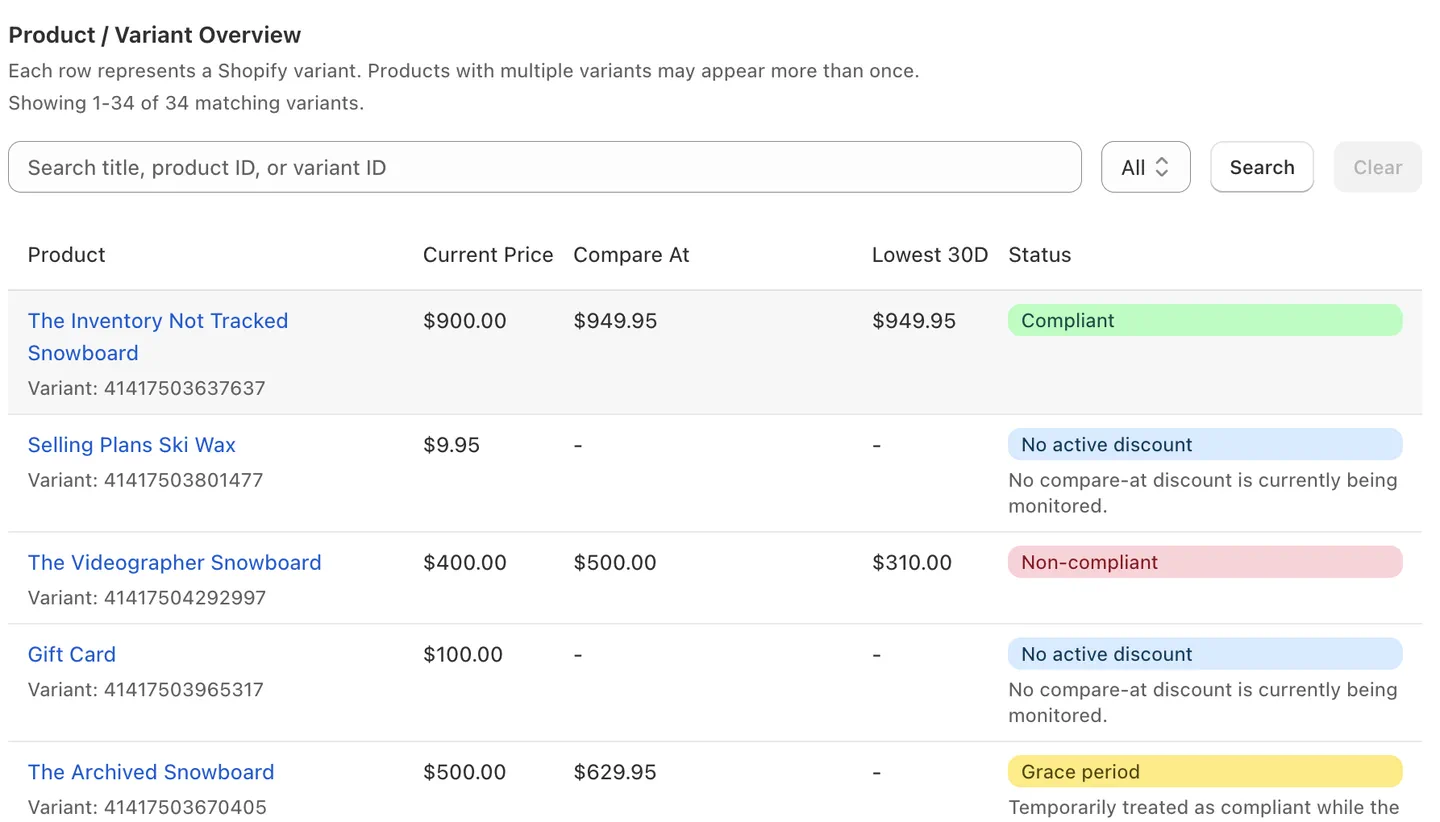
A newly installed store may still be building tracked history. Until enough data is prepared, some discounted products may stay pending or may not be eligible for a verified badge yet.
Step 3: Run the compliance workflow
Once product data is prepared, use the compliance actions the merchant sees in the app today.
- Stay in Operations & batches.
- Click Run compliance check.
- Review Recent job runs for progress.
- Open Dashboard overview for the latest summary.
- Open Reports & evidence for detailed records and exports.
Step 4: Configure compliance rules
For launch stores, the public rules guide should match the live app settings surface.
- Open Badge settings.
- Go to Compliance rules.
- Adjust tracking, grace-period, exception-tag, or monitored-category settings if needed.
- Click Save compliance rules.
See our Configure Rules guide for the current control list.
Step 5: Add trust badges (optional)
To display verified discount badges on your product pages:
- Go to Online Store → Themes → Customize.
- Open a product template and add the Compliance badge app block.
- Or use App embeds → Badge auto-placement if you prefer automatic placement.
- Configure the current Theme Editor text, subtext, style, and size settings, then save
See our Theme Editor Badge Setup guide for detailed instructions.
Next steps
- Review Dashboard overview after each sync or compliance run.
- Use Reports & evidence to review the audit trail and download CSV files.
- Return to Operations & batches when you need updated product or compliance information.