Configure Rules
10 min read
Set up tracking windows, grace periods, and custom rules to match your compliance needs.
Access rule settings
Open Badge settings and go to Compliance rules.
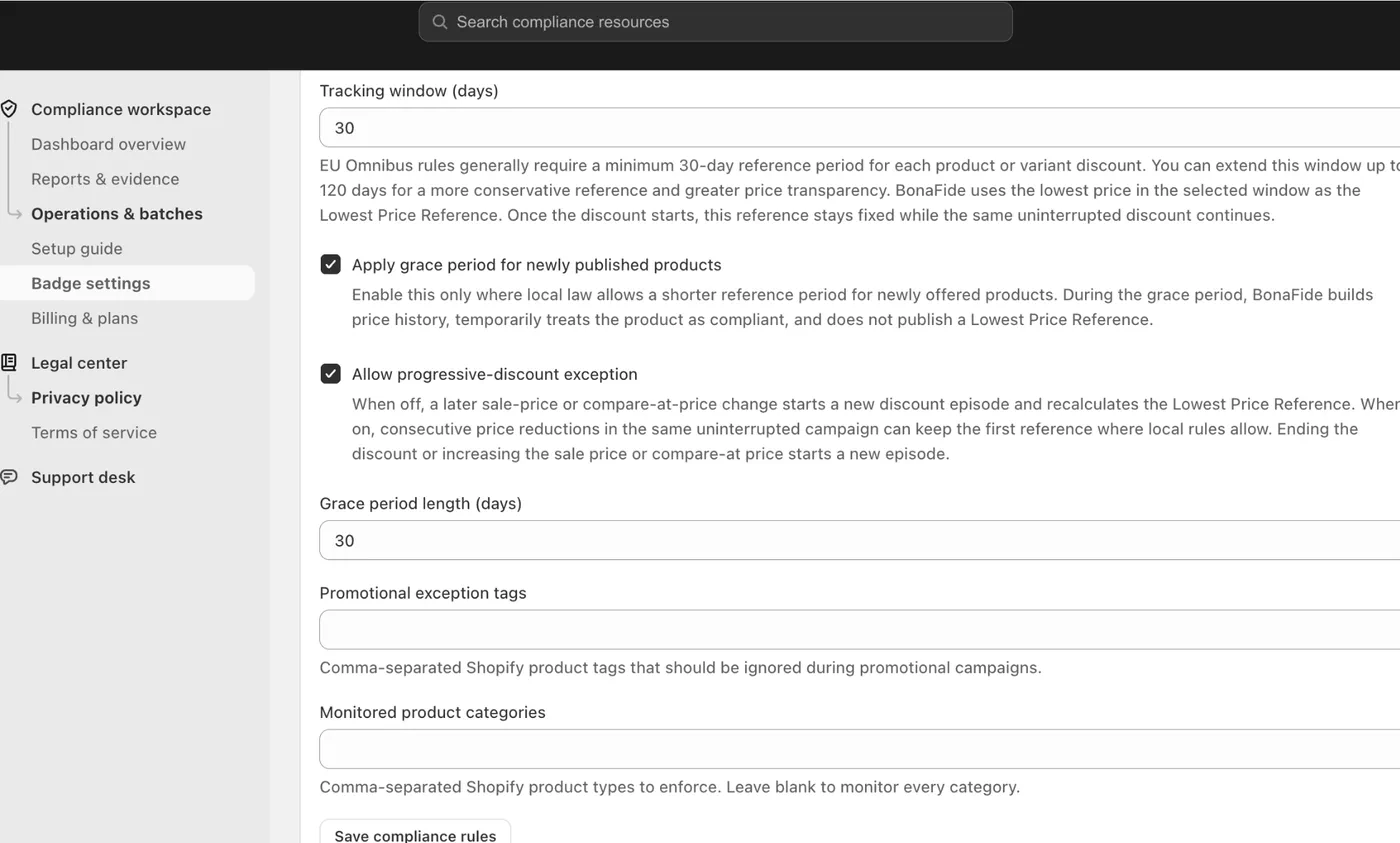
Tracking window
The app uses a numeric tracking window field for the number of days to keep in scope for compliance evidence.
Current range: 30 to 120 days.
Grace period
The current rules screen includes a checkbox to apply a grace period to newly published products.
When enabled, the Grace period length (days) field can be configured up to 90 days. To turn the grace period off, disable the grace-period setting.
Progressive-discount rules
The launch version uses a single merchant-controlled toggle:
Allow progressive-discount exception can be turned on or off.
Promotional exception tags
Use the Promotional exception tags field to enter merchant-defined, comma-separated Shopify product tags.
These tags are merchant-controlled input, not a built-in magical tag list.
Monitored product categories
The current rules screen includes Monitored product categories as a comma-separated field.
Save and monitor changes
After updating a rule, click Save compliance rules.
Rule changes can affect future evidence, warnings, pending states, and badge eligibility. After saving, use Operations & batches and Reports & evidence to review the next workflow results.