Theme Editor Badge Setup
10 min read
Add verified discount badges to your product pages using the Shopify Theme Editor. No code required.
Overview
The launch version supports two Theme Editor setup paths: a recommended manual product-page block and an optional automatic app-embed flow.
Step 1: Open Theme Editor
- Go to Online Store → Themes.
- Click Customize on your active theme.
- Navigate to a product page template
Step 2: Recommended manual placement
Use the product template block flow when you want to choose the badge position yourself.
- In the Sections panel, click Add block.
- Open Apps and choose Compliance badge.
- Move the block close to the product price.
- Use the Theme Editor controls for text, subtext, style, and size.
- Click Save.
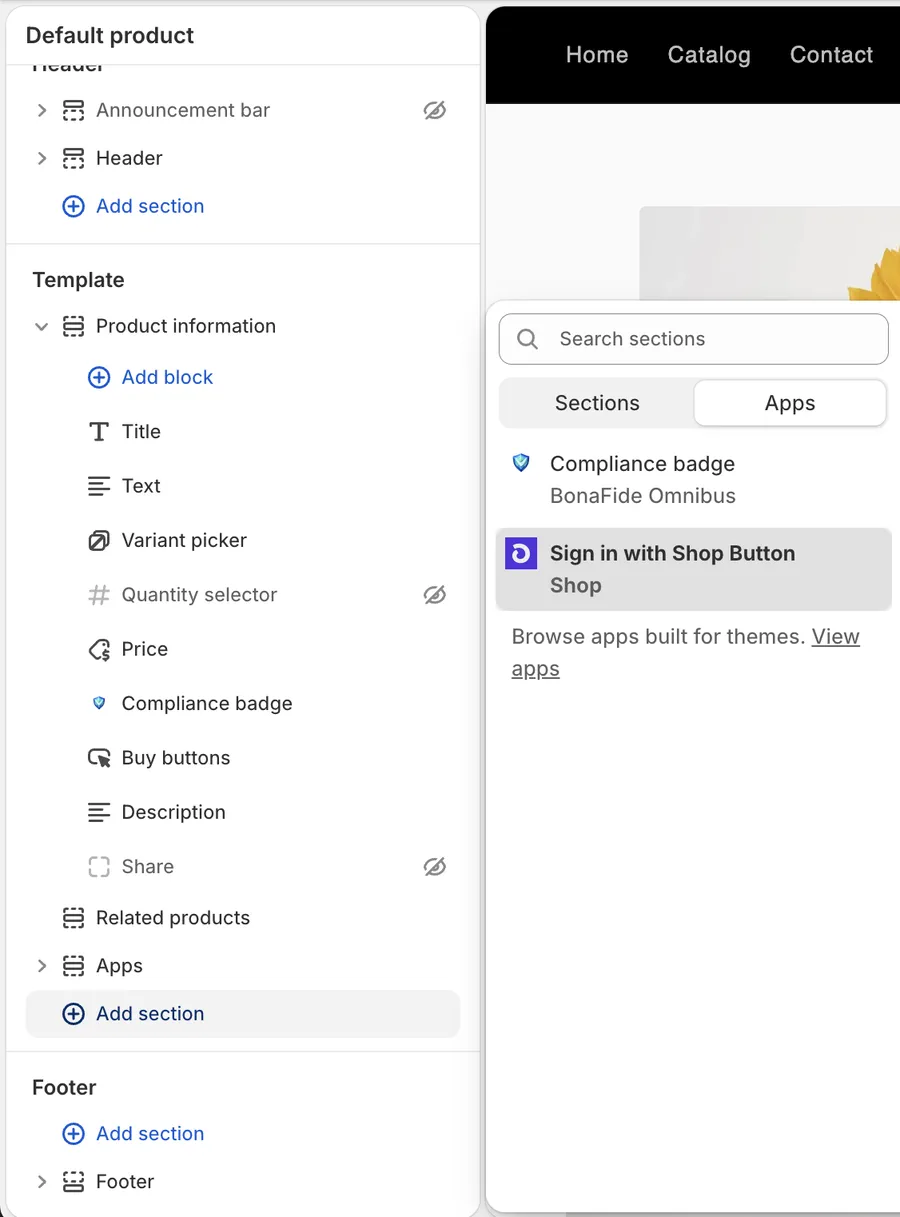
This manual block is the clearest way to place the badge near the product price without relying on automatic placement rules.
Step 3: Optional automatic placement
Use the app-embed path if you prefer the automatic storefront mount.
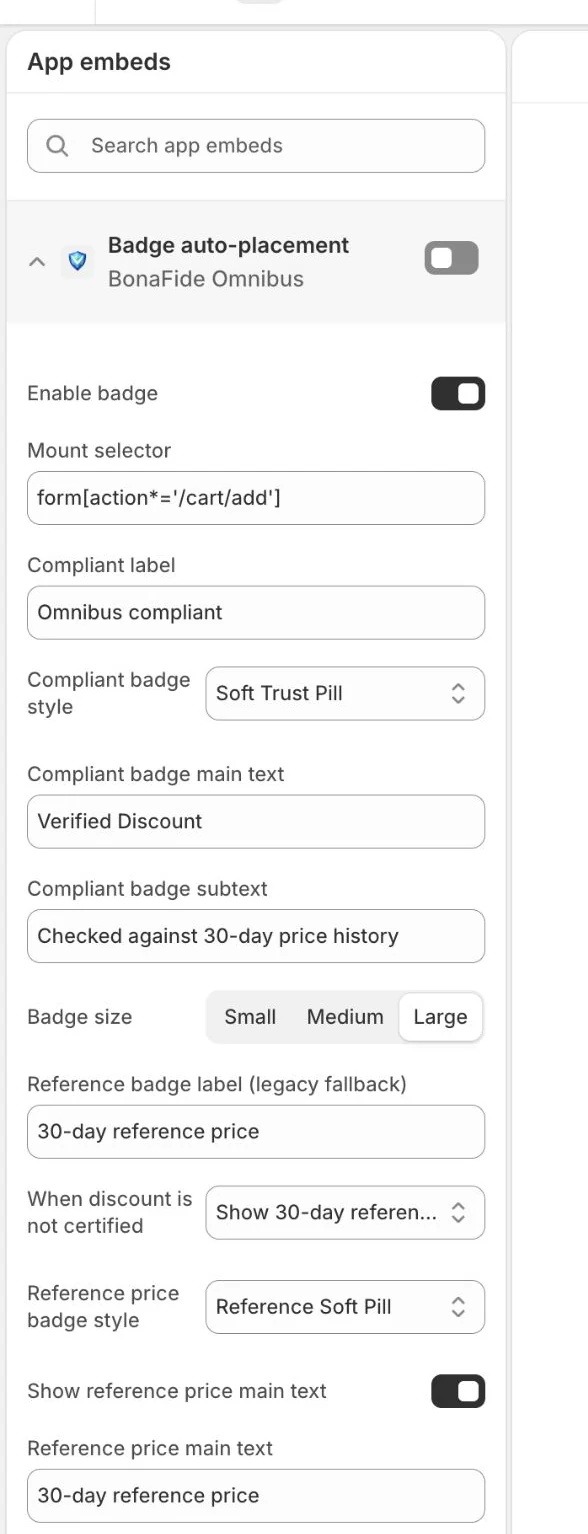
- Open App embeds in the Theme Editor sidebar.
- Find Badge auto-placement.
- Toggle it on and save.
The app block and the app embed are different setup methods. Do not treat both as a generic app embed.
Step 4: Understand badge eligibility
A badge is shown only when the app has the required badge status and payload for that product or variant. In practice, badge rendering depends on the current discount or compliance state, tracked history, your saved compliance rules, and the app-owned badge data prepared for the storefront.
- A newly installed store may still be preparing product data and reference history.
- Some discounted products may show a reference badge or no badge until enough history exists.
- Changing compliance rules can change future badge eligibility.
Step 5: Review on the storefront
- Open a product page on your storefront.
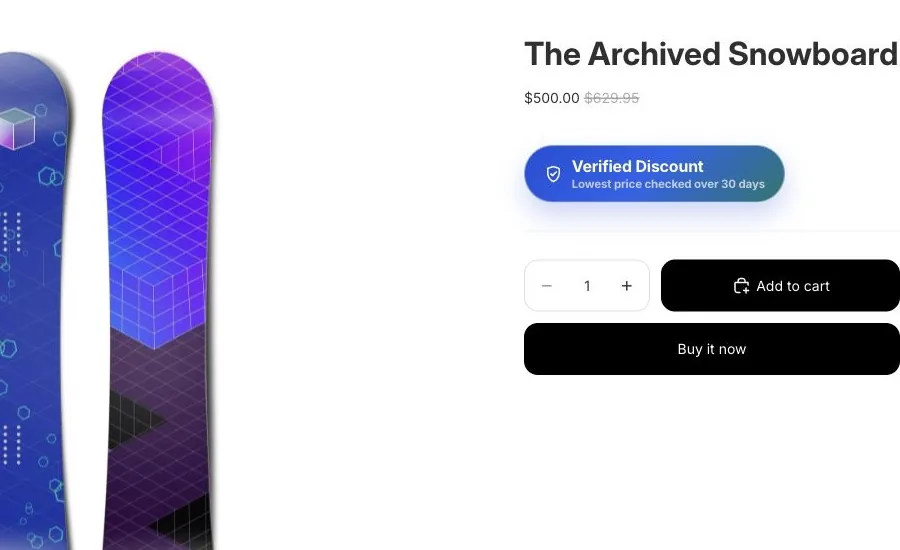
- Confirm the badge appears once in the position you selected.
- If the badge is missing, run Sync products and Run compliance check, then review Dashboard overview and Reports & evidence.
Troubleshooting
- Make sure you are editing an active product template.
- Confirm that the Compliance badge block or Badge auto-placement app embed is enabled.
- Save Theme Editor changes before rechecking the storefront.
- If tracked history is still being prepared, allow the app time to produce badge data.