Run Compliance Check
5 min read
Learn how to run compliance checks and interpret the results in your dashboard.
Understanding compliance checks
Compliance checks compare prepared product pricing against the 30-day lowest-price rule and write the latest outcomes back to the app workflow surfaces.
Running a check
- Open Operations & batches.
- If product data needs preparation, click Sync products.
- Click Run compliance check.
- Monitor Recent job runs until the latest job completes.
- Open Dashboard overview to review the latest summary.
- Open Reports & evidence to review detailed records and the audit trail.
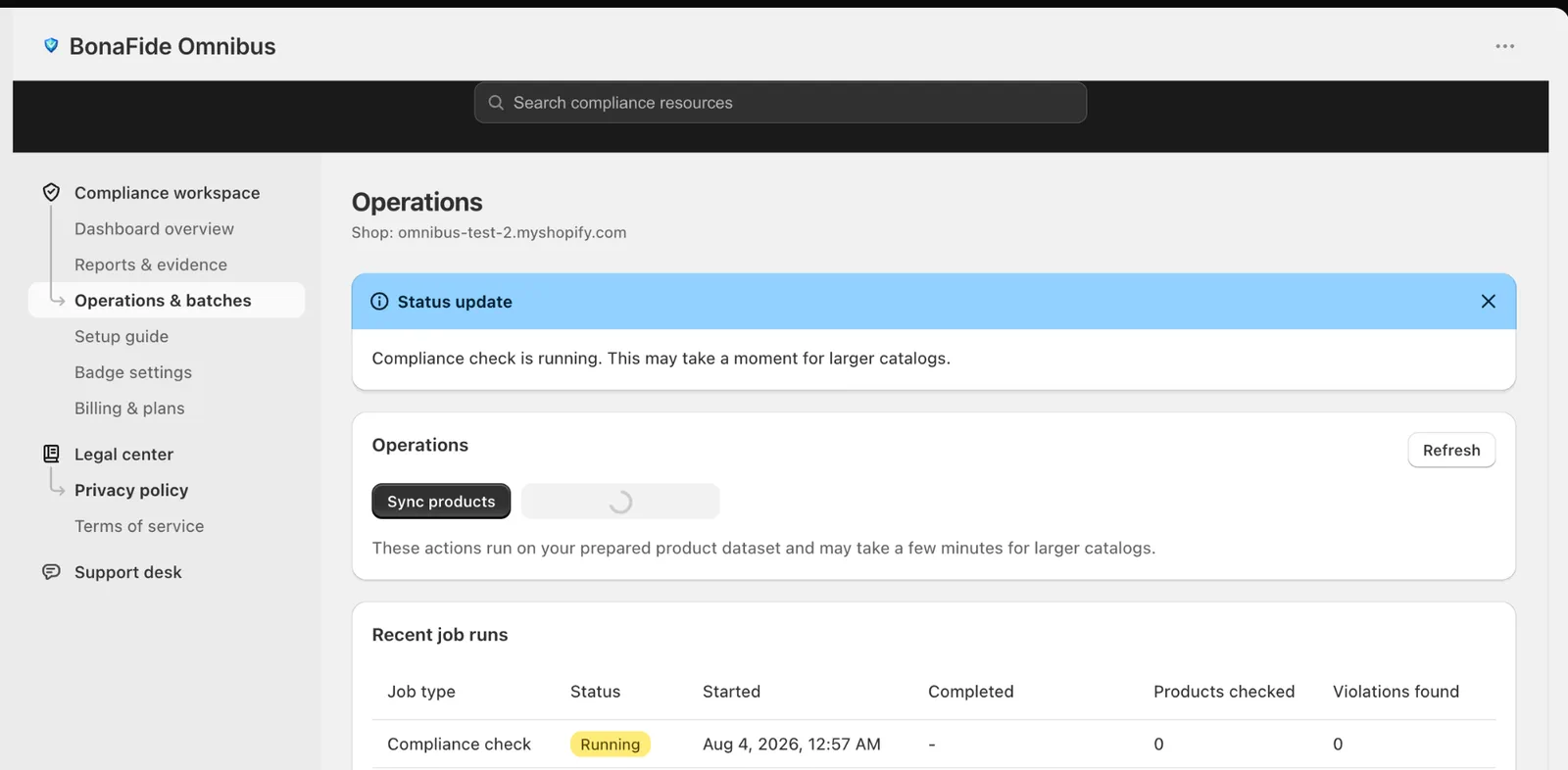
Use Operations & batches for actions, Recent job runs for progress, Dashboard overview for summary counts, and Reports & evidence for detailed follow-up.
What you may see after a run
Current merchant-visible labels can include states such as Compliant, Non-compliant, Pending, Grace period, and Excluded. The exact label depends on the product state and available history.
Pending states typically mean the app is still preparing tracked history or waiting for the latest job result.
Non-compliant records need attention. Review Reports & evidence for the latest audit details and CSV export.
The product is excluded from checks based on your rules or configuration.
Grace period can apply to newly published products when that rule is enabled.
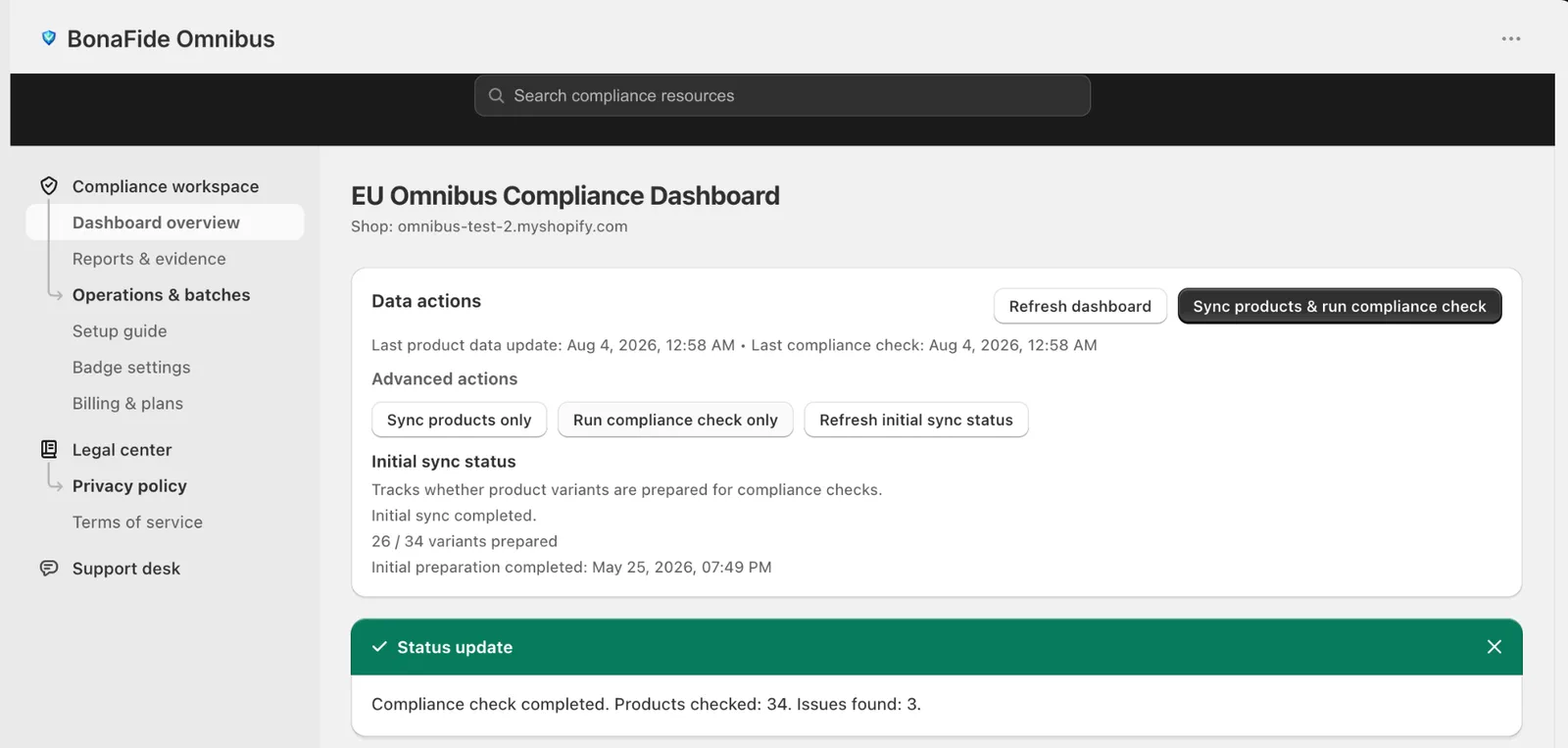
What happens when an item needs attention?
If a product is flagged, review its record in Reports & evidence, compare it with your pricing decisions, and rerun the workflow after making any necessary changes.
BonaFide flags potential violations but does not provide legal advice. Consult with a legal advisor to understand what actions to take.
Viewing evidence
Current evidence review includes:
- The summary totals on Dashboard overview
- The audit trail table in Reports & evidence
- Status filtering and CSV download in the reports screen